How to Fix Task Manager Disabled by Administrator in Windows


Task Manager is most used Application and we probably use it when we want to End any Unstable Application, Check Running Processes, Monitor CPU Performance, etc.
But many a times it may happen that our Computer might be Infected by some kind of Virus and the Task Manager is not running.


This can be even showing an error message like "Task Manager Disabled by Administrator".
So for this error, here is Trick on How to Fix Task Manager Disabled by Administrator in Windows.

Registry Trick

1) Click Start  >>  Run  >>  type "regedit" ( without quotes )  >>  press Enter to Open Registry Editor.

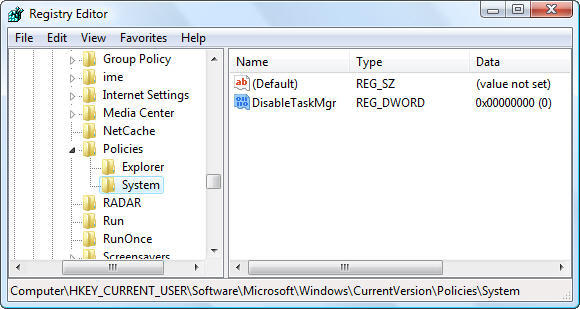
2) Now navigate to HKEY_CURRENT_USER\Software\Microsoft\Windows\ CurrentVersion\Policies\System.

3) Here look for Registry Key named like "DisableTaskMgr" in the Right Pane. If you find this just simply Delete the key or Set its value to 0 by Double Clicking on it.


Group Policy Trick
If you not find any Registry Key named like "DisableTaskMgr" then alternatively use this Trick.

1) Click Start  >>  Run  >>  type gpedit.msc  >>  press Enter to open Group Policy.

2) Now Navigate to User Configuration  >>  Administrative Templates  >>  System  >>  Ctrl+Alt+Delete Option  >>  Remove Task Manager.

3) Now Right Click it  >>  Edit  >>  Select Not Configured  >>   Apply  >>  OK and Exit.


4) Now Restart the Computer and the Error must be Fixed.


Other Tricks
If the Task Manager is still not Fixed Yet then try these Tricks.


1) As Malware or other kinds of Virus may prevent Task Manager from Opening so try a Deep Malware and Virus Scan.This may help you. For this you can use the Product by Microsoft i.e. Microsoft Security Essential.

2) Run System File Checker by typing sfc/scannow in Command Prompt and pressing Enter.
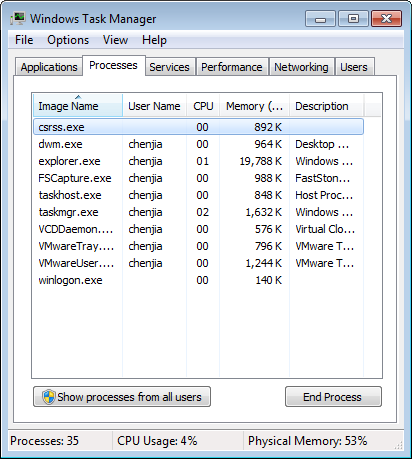
If still now the Problem is not Fixed then We recommend that you ReInstall Windows. As this Problem can cause further Errors and Damages to your Computer. Or For more help you can Contact Us.

So these are simple Tricks on How to Fix Task Manager Disabled by Administrator in Windows.

How to Fix Task Manager Disabled by Administrator in Windows


Task Manager is most used Application and we probably use it when we want to End any Unstable Application, Check Running Processes, Monitor CPU Performance, etc.
But many a times it may happen that our Computer might be Infected by some kind of Virus and the Task Manager is not running.


This can be even showing an error message like "Task Manager Disabled by Administrator".
So for this error, here is Trick on How to Fix Task Manager Disabled by Administrator in Windows.

Registry Trick

1) Click Start  >>  Run  >>  type "regedit" ( without quotes )  >>  press Enter to Open Registry Editor.

2) Now navigate to HKEY_CURRENT_USER\Software\Microsoft\Windows\ CurrentVersion\Policies\System.

3) Here look for Registry Key named like "DisableTaskMgr" in the Right Pane. If you find this just simply Delete the key or Set its value to 0 by Double Clicking on it.


Group Policy Trick
If you not find any Registry Key named like "DisableTaskMgr" then alternatively use this Trick.

1) Click Start  >>  Run  >>  type gpedit.msc  >>  press Enter to open Group Policy.

2) Now Navigate to User Configuration  >>  Administrative Templates  >>  System  >>  Ctrl+Alt+Delete Option  >>  Remove Task Manager.

3) Now Right Click it  >>  Edit  >>  Select Not Configured  >>   Apply  >>  OK and Exit.


4) Now Restart the Computer and the Error must be Fixed.


Other Tricks
If the Task Manager is still not Fixed Yet then try these Tricks.


1) As Malware or other kinds of Virus may prevent Task Manager from Opening so try a Deep Malware and Virus Scan.This may help you. For this you can use the Product by Microsoft i.e. Microsoft Security Essential.

2) Run System File Checker by typing sfc/scannow in Command Prompt and pressing Enter.

If still now the Problem is not Fixed then We recommend that you ReInstall Windows. As this Problem can cause further Errors and Damages to your Computer. Or For more help you can Contact Us.

So these are simple Tricks on How to Fix Task Manager Disabled by Administrator in Windows.

Tips for Safe Internet Surfing


The Internet is the World Wide Web on which there are millions of Websites including
TOP TRICKS AND TIPS.
But it is not necessary that all Websites are as much Safe as
TOP TRICKS AND TIPS

There are are more then half of all Websites which are not Safe. 


But we still Surf them unknowingly and sometimes unluckily we are harmed from them in the way like our Computer, Laptop or other Surfing Device got Infected or Destroyed. As it is not that easy to detect that which Website is Safe or which is harmfull, therefore we can follow some Tips to protect ourself while Internet Surfing.

So here are some Tips for Safe Internet Surfing.


1) Enable Pop Up Blocker. Nearly 90% of Websites use Pop Up windows on there Websites. These Pop Ups may contain Advertisements, Data Feeders, Mostly Fake Subscriptions, Spam or Unwanted Informations etc. So to get rid of such Pop Ups We recommend that you Enable the Pop Up Blocker in your Web Browser.

2) Increase Security Parameters. We often reduces the Security Level in our Browser thinking that this Practice would not Block or make the Content Invisible of any Website. But this is just a myth. As if the Website's Content is Secure and is Trust Worthy then it couldnot be hidden from any Firewall or Browser. So we recommend that the Security Level should be at Medium or Moderate Level.


3) Think before Clicking. As we have discussed that not all Websites are Safe and Obviously there Links may also be not Safe. So before Clicking on any Link on Website firstly Read, Think and then only Click on it.

4) Defend Yourself. This pratice proves to be best from all. As this Tip would not only help you in Safe Surfing but also Protect your Computer from harmfull effects of the Unsafe Website. So we recommend that you should Install the best and Lite Antivirus on your Computer which would also help in making Computer Faster.To know more about Speeding Up Computer take a look at our post on Top 5 Tips to protect Computer from Virus.

Note : We Ensure to all our Readers that TOP TRICKS AND TIPS "IS" and "WOULD BE" Secure forever. So feel free to Surf on our Website. 
If you Find or Notice any kind of Insecure Content on our Website, then do Contact Us and We would look forward for it's Solution and the person would be Rewarded accordingly for Reporting the Malicious or Unsafe Links on TOP TRICKS AND TIPS

So these are Tips for Safe Internet Surfing

Tips for Safe Internet Surfing


The Internet is the World Wide Web on which there are millions of Websites including
TOP TRICKS AND TIPS.
But it is not necessary that all Websites are as much Safe as
TOP TRICKS AND TIPS

There are are more then half of all Websites which are not Safe. 


But we still Surf them unknowingly and sometimes unluckily we are harmed from them in the way like our Computer, Laptop or other Surfing Device got Infected or Destroyed. As it is not that easy to detect that which Website is Safe or which is harmfull, therefore we can follow some Tips to protect ourself while Internet Surfing.

So here are some Tips for Safe Internet Surfing.


1) Enable Pop Up Blocker. Nearly 90% of Websites use Pop Up windows on there Websites. These Pop Ups may contain Advertisements, Data Feeders, Mostly Fake Subscriptions, Spam or Unwanted Informations etc. So to get rid of such Pop Ups We recommend that you Enable the Pop Up Blocker in your Web Browser.

2) Increase Security Parameters. We often reduces the Security Level in our Browser thinking that this Practice would not Block or make the Content Invisible of any Website. But this is just a myth. As if the Website's Content is Secure and is Trust Worthy then it couldnot be hidden from any Firewall or Browser. So we recommend that the Security Level should be at Medium or Moderate Level.


3) Think before Clicking. As we have discussed that not all Websites are Safe and Obviously there Links may also be not Safe. So before Clicking on any Link on Website firstly Read, Think and then only Click on it.

4) Defend Yourself. This pratice proves to be best from all. As this Tip would not only help you in Safe Surfing but also Protect your Computer from harmfull effects of the Unsafe Website. So we recommend that you should Install the best and Lite Antivirus on your Computer which would also help in making Computer Faster.To know more about Speeding Up Computer take a look at our post on Top 5 Tips to protect Computer from Virus.

Note : We Ensure to all our Readers that TOP TRICKS AND TIPS "IS" and "WOULD BE" Secure forever. So feel free to Surf on our Website. 
If you Find or Notice any kind of Insecure Content on our Website, then do Contact Us and We would look forward for it's Solution and the person would be Rewarded accordingly for Reporting the Malicious or Unsafe Links on TOP TRICKS AND TIPS

So these are Tips for Safe Internet Surfing


Trick to Customize Windows 7 Logon Screen


Windows 7 Logon Screen is easily accessible by pressing Ctrl + Alt + Del keys together.

The screen contains the Options like Lock Computer, Logging OFF, Swith User, Change Password, Start Task Manager.


Now from this Trick We can Customize the Options available on  this Screen.
So to use this Trick follow the simple procedure :

1) Click Start  >>  type "gpedit.msc" ( without quotes )  >>  press Enter.

2) Now navigate to User Configuration  >>  Administrative Templates  >>  System.

3) Now in the Right Pane look for Ctrl + Alt + Del Options and Double Click on it.

4) Now accordingly Enable or Disable the Options listed over there like Remove Change password, Remove Lock Computer, Remove Task Manager, Remove Log Off etc. by Double Clicking on it and selecting OK.

5) Now it is done. To see the changes press Ctrl + Alt + Del and have a look.

So it is a simple Trick to Customize Windows 7 Logon Screen.

Trick to Customize Windows 7 Logon Screen


Windows 7 Logon Screen is easily accessible by pressing Ctrl + Alt + Del keys together.

The screen contains the Options like Lock Computer, Logging OFF, Swith User, Change Password, Start Task Manager.


Now from this Trick We can Customize the Options available on  this Screen.
So to use this Trick follow the simple procedure :

1) Click Start  >>  type "gpedit.msc" ( without quotes )  >>  press Enter.

2) Now navigate to User Configuration  >>  Administrative Templates  >>  System.

3) Now in the Right Pane look for Ctrl + Alt + Del Options and Double Click on it.

4) Now accordingly Enable or Disable the Options listed over there like Remove Change password, Remove Lock Computer, Remove Task Manager, Remove Log Off etc. by Double Clicking on it and selecting OK.

5) Now it is done. To see the changes press Ctrl + Alt + Del and have a look.

So it is a simple Trick to Customize Windows 7 Logon Screen.


Trick to SpeedUp Windows XP


Windows XP is still prefered Operating System by many of the Computer Users.

But sometimes those users are also disappointed when they Experience Slow Down of Windows XP.

So now here is the Trick to SpeedUp Windows XP.


So to SpeedUp Windows XP follow these steps :


1) Click Start  >>  RUN  >>  type "sysdm.cpl" ( without quotes )  >>  press Enter.

2) Now Click Advance and under Performance click Settings.

3) Now again click Advance Option from this Pop Out and go to Change Option for Virtual Memory.

4) Now find the drive that Contains the Paging File and click Customize.

5) Now Increase the Paging Files size in MB ( Mega Bytes ) to limited extent.

6) Finally click OK and Apply the Changes.


7) Restart the Computer and it is done.

So it is a simple Trick to SpeedUp Windows XP

.

m